Customizing FIT Made Easier

0
  • Friday, July 08, 2011
  • The developers for FIT have always strived to make end user customizations one of the major benefits in choosing their software. The benefits of customization are :

    1. Being able to customize the appearance of the tool through html and css changes can be as simple as adding a logo and matching the colors of the interface to those of the company. This allows customers to make the software fit (pardon the punn) in an existing web site or match the pages that take the users to it. It also allows you to add html and links to other sites or tools which might be useful to users.

    2. Our workflow feature allows you to define rules about what users can see and which users are able to modify specific fields or issues. It can also be used to control or make modifications to issues based on the values which are saved during modifications.

    3. Language strings can be changed across the tool in the language settings feature where language translations can be modified or created for any string in the system. These strings will localize the product to any language, if someone is available to do the translations. The product is shipped with Spanish, French, German and English base translations.

    4. Complex customizations can be achieved by adding javascript to the product, which opens up an endless list of possibilities. Some common examples are :

    - changing field values based on the current user, or the values of other fields

    - hiding/displaying parts of the page depending on what is currently happening in an issue.

    - adding custom instructions or options to the user for a specific purpose

    One problem that has always been a nuisance to administrators, especially those on hosted systems, has been the ability to upload files where FIT can actually access them. Until now, access to the actual machine where FIT resides, has always been necessary. This meant that the system administrator or FIT team (for hosted systems) has always had to be involved.

    A new upload feature has just been added to FIT which will allow any administrator for FIT to simply upload a file to a public directory served by the system, so it can be accessed directly by the tool. So, if you have a new logo, a pdf with special instructions, or want to store your javascript in a .js file, rather than a custom string, you can now upload them directly to your server, where they can be accessed by FIT immediately. You no longer need to make a request to your IT tech or to the FIT team. (hosted systems)

    Example:

    A recent request came in about how to customize the favicon file which is used for the URL icon in the browser address bar.
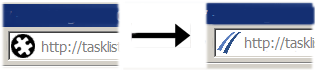
    This image is configured by changing the sFAVICON custom string. If you have a proper .ico file that you would rather see in the address bar and on browser tabs, you can upload the file to FIT and then change this string to something like the following (since the upload goes to public) :

    This is equivalent to the following (leave out the port if you are redirecting through apache) :

    ** Note: the two lank tags above should actually be "link" this blog would not allow me to format link tags properly within the text.


    FIT TIP #2

    0
  • Friday, June 17, 2011
  • CREATING USERS

    Action: Admin Menu>General Setup>User

    Complete the following fields: User Id (the name others will see, you can keep this a short form of their name as it also the name the user will have to login with), Password (user can always change it later), Confirm Password, User Tag (optional, this is where you can put the user’s full name if you want, which will be displayed in brackets after their User Id), Email address (this is the address that their notifications will be sent to). Select their user type. Profile to Copy is handy and can save you a lot of time if you are creating a large number of users and they all have the same profile. Add User to selected tracks is available as an option if you have more than one track. Here you can select which tracks to give the user access. Then select Add User.

    How to Add Formulas to Custom User Fields

    0
  • Thursday, May 19, 2011
  • FIT has always offered a Rank formula which allows the administrator to configure Rank to show a calculated value for each issue, based on the states of issues, or based on the values of specific fields for an issue.


    The most common use for the Rank field is to create an escalation order for issues based on a combination of :
    A) the priority of the issue, and
    B) how long the issue has been sitting open


    This way, a quick report can be made using the Rank field to order the issues.
    Any issues which have been sitting more than X days will become more important.


    The value for Rank is calculated using an OGNL formula, which allows us to use the values for fields of each bug structure, or methods defined in the BugStruct class, to make a custom calculation. For example, the default Rank formula :
    (100-mPriority*10)+getElapsedTime()


    This formula calculates an escalation value where any issue that is open for more than 10 days will escalate to a rank of a new issue in the next Priority scale.
    This is very useful but it is limited in that it only allows one calculation.


    With Version 8.03+, a few new classes have been created as part of the base code set for FIT. These are :
    FormulaCustomUserField - create a custom formula showing a Double value
    FormulaIntCustomUserField - create a custom formula showing an Integer value
    FormulaDateCustomUserField - create a custom formula showing a Date value

    Each of these new class types can be very useful to create your very own custom field.

    Note the new custom option in the Advanced settings of the Admin -> Custom Fields menu.
    Generally, this is used for classes that are created by our team as an add-on feature.

    These Formula types allow you to use the OGNL functionality as a formula for a readonly calculated field type which you can use for reports, other calculations, etc.

    As an example, one custom recently inquired about how to include the date that an issue was closed. Unfortunately, the Closed Date is not an existing default field in the system. However, the data does exist for the calculation of the ElapsedTime (time until closed) field.

    The new FormulaDateCustomUserField allows us to define a new field called "CLOSED DATE" which will simply take the value of the mClosedDate field, which is in the system. The formula in this case is very simple, but it shows how useful the field can be.

    The following images show the configuration option :


    and the resulting details for a given issue:


    We appreciate that OGNL can be complicated but we do list the BugStruct fields as part of the Rank documentation. Also, you are free to discuss with us if you are not sure, but you think this field could be of use to you.

    FIT TIP #1: IMPORTING USERS

    0
  • Wednesday, May 18, 2011


  • Action: Admin Menu>General Setup>User>FileImport

    You can import Users from a file (excel spreadsheet) that has lines formatted as follows: [login,password,tag,email,type,group] for example: jsmith, password123, Jane Smith, jsmith@alceatech.com, normal, IT Group (add group only if you have already created groups previous to importing users)